
Community
Welcome

Welcome, goodbye and boost messages with a visual editor and preview.
AvailableFree
Hi @Luna! 👋
Welcome message
{user.name}{server.name}{memberNumber}Welcome cardAttach the card to the message: on
#22D3EEIllustrative example of the interface: you can try the controls, but nothing is saved.
What it does
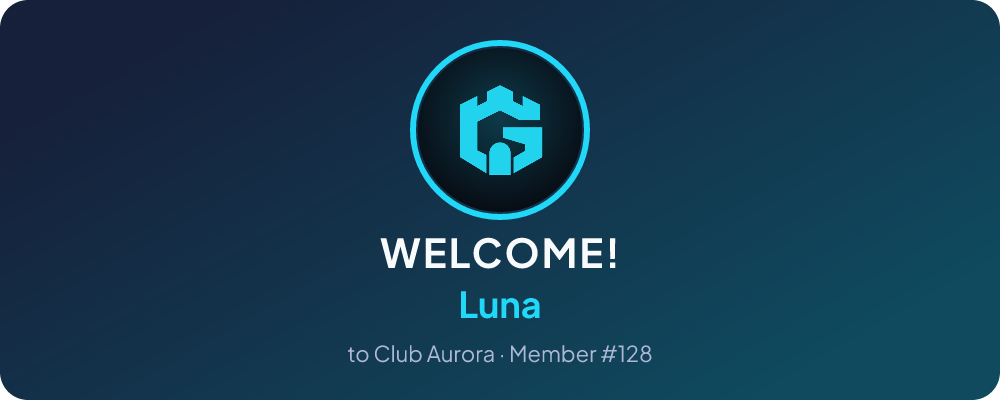
When someone joins, Garita greets them in the channel you pick with a card showing their avatar and member number. It can also say goodbye when people leave and thank your boosters.
- Message variables: name, server, member number, channels and roles
- Optional welcome image using the server's card
- A welcome by direct message too, if you turn it on
- Up to 5 link buttons to websites or server channels
- Goodbyes and boost thank-yous, each in its own channel
Commands
Type / in Discord and they show up by themselves. Welcome has 11:
| Command | What it does | Who can use it |
|---|---|---|
/welcome setupDashboard | Welcome channel and the channels the default message points to | Staff By default, anyone with the permission: Manage Server. |
/welcome goodbyeDashboard | Goodbye channel (empty = off) | Staff By default, anyone with the permission: Manage Server. |
/welcome boostDashboard | Boost thank-you channel (empty = off) | Staff By default, anyone with the permission: Manage Server. |
/welcome afterDashboard | Greet on join or after verification | Staff By default, anyone with the permission: Manage Server. |
/welcome imageDashboard | Welcome image: attach the welcome card (animated or still) | Staff By default, anyone with the permission: Manage Server. |
/welcome cardDashboard | Design the welcome card | Staff By default, anyone with the permission: Manage Server. |
/welcome optionsDashboard | Thread, auto-delete and where the card goes | Staff By default, anyone with the permission: Manage Server. |
/welcome dmDashboard | Also welcome new members by direct message | Staff By default, anyone with the permission: Manage Server. |
/welcome test | Send a test message with you as the member | Staff By default, anyone with the permission: Manage Server. |
/welcome toggleDashboard | Turn the module on or off | Staff By default, anyone with the permission: Manage Server. |
/welcome statusDashboard | Configuration | Staff By default, anyone with the permission: Manage Server. |
“Who can use it” is each command’s default permission. Administrators can change it in Discord: Server Settings → Integrations → Garita.
Commands marked “Dashboard” set up the same thing as a dashboard page. Discord hides them until you turn on “Setup commands in Discord” in the server settings, inside the dashboard.
Safe by default
Before Welcome does anything in your server, all of this holds:
By default, its staff commands ask whoever runs them for a Discord permission: Manage Server.
Garita checks its own permissions before it switches on and before every action. For Welcome it needs: View Channels, Send Messages, Embed Links. Its optional features also ask for: Attach Files, Create Public Threads, Send Messages in Threads. They are checked when used, not before.
It starts switched off: it does nothing in your server until you turn it on.
It is on record: what it does is written to Garita’s audit log.
Two reasons to use it
Goodbyes and boosts
A message when someone leaves and another to thank whoever boosts your server. You write the text.
Does not greet someone just kicked
If the new-account filter kicks, bans or holds someone, they get no welcome. If your team lets them in later, the pending greeting is sent.
Live demo
A simulated server in your browser, focused on this feature. It starts by itself when you get here; then you can try it yourself.
welcomeGarita greets newcomers here.
Garita greets newcomers here; the “welcome image” is on in this sandbox. Press the button to watch someone join.
A simulation in your browser: it does not connect to Discord or store anything. The server “Club Aurora”, its members (Nora, Mateo, Luna…) and their numbers are examples; the replies use the same texts and the same rules as the bot.
How it works
Pick the channel with /welcome setup or in the dashboard, where you edit the message with a live preview.
Decide with /welcome after whether to greet on join or after verification, and whether to add an image or a direct message.
When someone joins, Garita posts the message mentioning them; you can try it on yourself first with /welcome test.
Related features
- Roles & onboardingAvailableButton, menu and reaction roles, exclusive groups, temporary roles and auto-assign.
- Invite trackerAvailableAttributes each join to its invite and inviter, with leaderboard and basic anti-fraud.
- Whitelist examAvailableExam in a private thread (quiz, staff-reviewed allowlist or ID only) that grants access with a role.
- FormsAvailableApplications with your own questions: the team accepts or rejects them and roles are given automatically.



Frequently asked questions
What happens if the welcome channel is deleted?
That kind of message is switched off with a notice and Garita stops trying. Picking a channel again turns it back on.
What if the welcome image cannot be generated?
The welcome is sent anyway, without the image. The same happens if Garita cannot attach files in that channel.
Is Welcome free?
Yes. Welcome is included in the free plan.
See the plansWhich permissions does Welcome need?
In Discord, Garita needs: View Channels, Send Messages, Embed Links. Only for its optional features: Attach Files, Create Public Threads, Send Messages in Threads.
Which permissions each feature needsDoes it work in my language?
Garita answers in 10 languages: Español, English, Français, Deutsch, Português (Brasil), Türkçe, Русский, 한국어, 繁體中文, العربية.
Can I bring my settings from another bot?
Yes. The migration assistant looks in your server for what your previous bot left behind and offers to copy it to Welcome. You choose what gets applied.
How migration worksSet up your server with Garita. The essentials are free.
One bot for your community’s security, moderation and everyday life.